


Payment methods

Your payment,
with clear terms.

Choose Pix, boleto or card on your invoice. See how each option works and what to check before confirming.

Payments processed by Asaas.
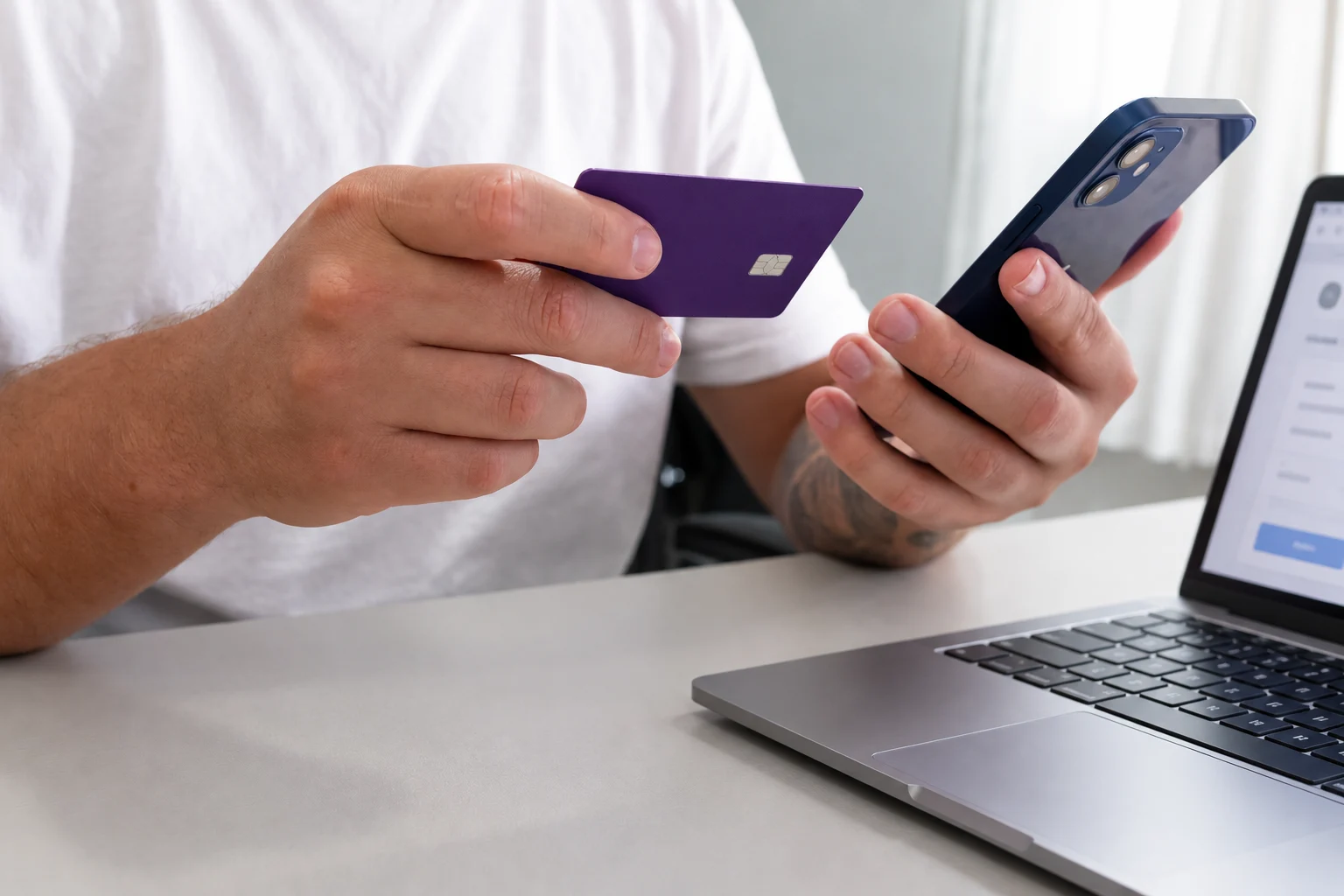
Person checking a payment on a phone while holding a card

How would you like to pay?

Your invoice shows the available options and final amounts. Explore each payment method here.

Pix

Pay from your invoice with your banking app.

Open your Zovvi invoice, choose Pix and use the QR or copy-and-paste code. Before confirming, check the recipient and amount in your app.

Use the code from the invoice itself. Do not substitute an unfamiliar contact’s payment key for the invoice.

  1. Open the invoice in your Client Area.

  2. Choose Pix and use its code in your banking app.

  3. Check the details and track confirmation on the invoice.

Credit

Credit card, with the terms shown before you pay.

Enter card details only in the invoice payment environment. Review the total and any offered installments and interest before authorizing. Approval depends on the issuer and transaction checks.

Do not send full card numbers, security codes, card photos or authentication codes through support.

  1. Open the invoice and select credit card.

  2. Review the options and total shown.

  3. Authorize within the payment environment and check the status.

Debit

Use debit when the payment option is available.

Availability depends on your card type and the options shown on the invoice. Your bank may request additional authentication. Check the transaction details before approving through the issuer.

Authentication takes place in the environment provided by your bank. Zovvi does not need your banking password or one-time codes.

  1. Check whether the invoice offers debit card payment.

  2. Use a compatible card in the payment environment.

  3. Complete any authentication requested by your bank.

Boleto

A boleto generated from your invoice.

Generate the boleto from the invoice and check the beneficiary, CNPJ, amount and due date. Recognition depends on bank clearing. Check the invoice status before paying again.

If the boleto has expired, check the invoice in your Client Area. Do not alter the barcode or use a replacement from a suspicious sender.

  1. Open the invoice and generate its boleto.

  2. Check the details in your bank before confirming.

  3. Keep your receipt and track payment clearing.

Card networks.

Your card type and network must match the option shown on the invoice. Network acceptance does not guarantee transaction approval.


Credit: Visa, Mastercard, Elo, Discover, American Express, Cabal, Banescard, JCB.

Debit: Visa, Elo, Mastercard.

Check the invoice
before paying.

Start in the Client Area. Compare the service, reference, amount and due date. The legal operator is Rocketz Digital Ltda, CNPJ 37.843.555/0001-05. Check the details on the invoice itself; if something differs, stop and confirm with Zovvi.

Learn to recognize a suspicious payment request

More options, coming soon.

These methods are not available yet. Terms will be published when they launch.

  • Nubank PayComing soon
  • Apple PayComing soon
  • Google PayComing soon
  • Mercado PagoComing soon
  • BitcoinComing soon

Payment questions.

Where can I find my invoice or a replacement?

Sign in to the Client Area and open your invoices. Use the invoice for the service you want to pay for. If you cannot sign in, contact support through a known channel.

I paid but the invoice is still open. What should I do?

Check the method, recipient and status with your bank. Some payments depend on approval or clearing. Do not pay again without checking. For help, provide the invoice reference and minimal transaction details, redacting sensitive information.

Are installments, automatic renewal or discounts available?

The applicable terms are those shown at purchase and on the invoice: billing cycle, total, installments, charges and recurring payments, where applicable. Read the renewal policy before purchasing.

How do I request cancellation or a refund?

Read the Refund and Cancellation Policy and contact account support. The chosen payment method does not change your service terms or applicable rights.

Need help checking an invoice?

Have your invoice reference ready. Our team can guide you through account support without asking for passwords or full card details.

Contact account support